 I know this could be old news to a lot out there, but I just discovered this feature here the other day and it’s actually pretty smart. Windows Live Writer has a feature called “Auto Linking”, which is found in Tools>Options>Auto Linking.
[more]
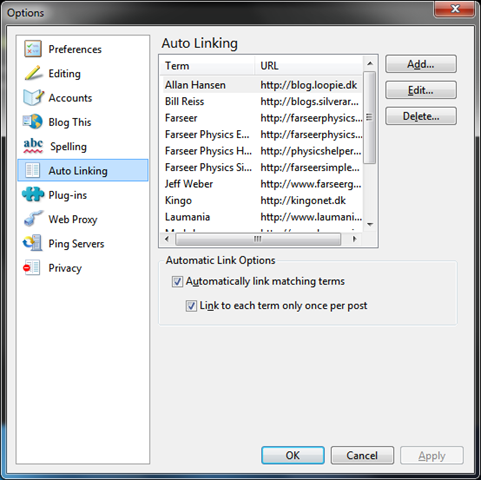
From here you can set up which words you want to be automatically made into a link when typed. For instance I have setup Silverlight to go to the Silverlight home page and open in a new windows. As a general setting, I have setup to only auto link once per post, which is why the second “Silverlight” in the above line isn’t made to a link.
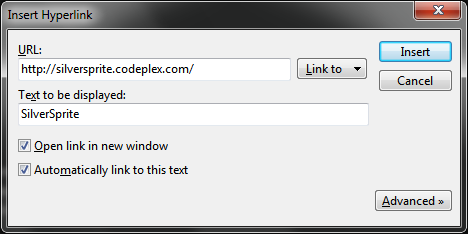
Another way to put in words for auto linking is done through the “Insert Hyperlink” window when you are creating a link in your post. Lets say that I write SilverSprite in my blog post and want it to be a link in this post, but I also want it to auto link the next time I write it in another post. Then I mark the text, SilverSprite, as normally and put in the URL in the Insert Hyperlink dialog. Then I check the “Automatically link to this text” box, which will put in this word in my auto linking list – it’s really easy and neat :)
This Auto Linking feature is pretty smart if you often write the same words in your blog posts and don’t want to manually create a link for it each time.